1
Download and open the app
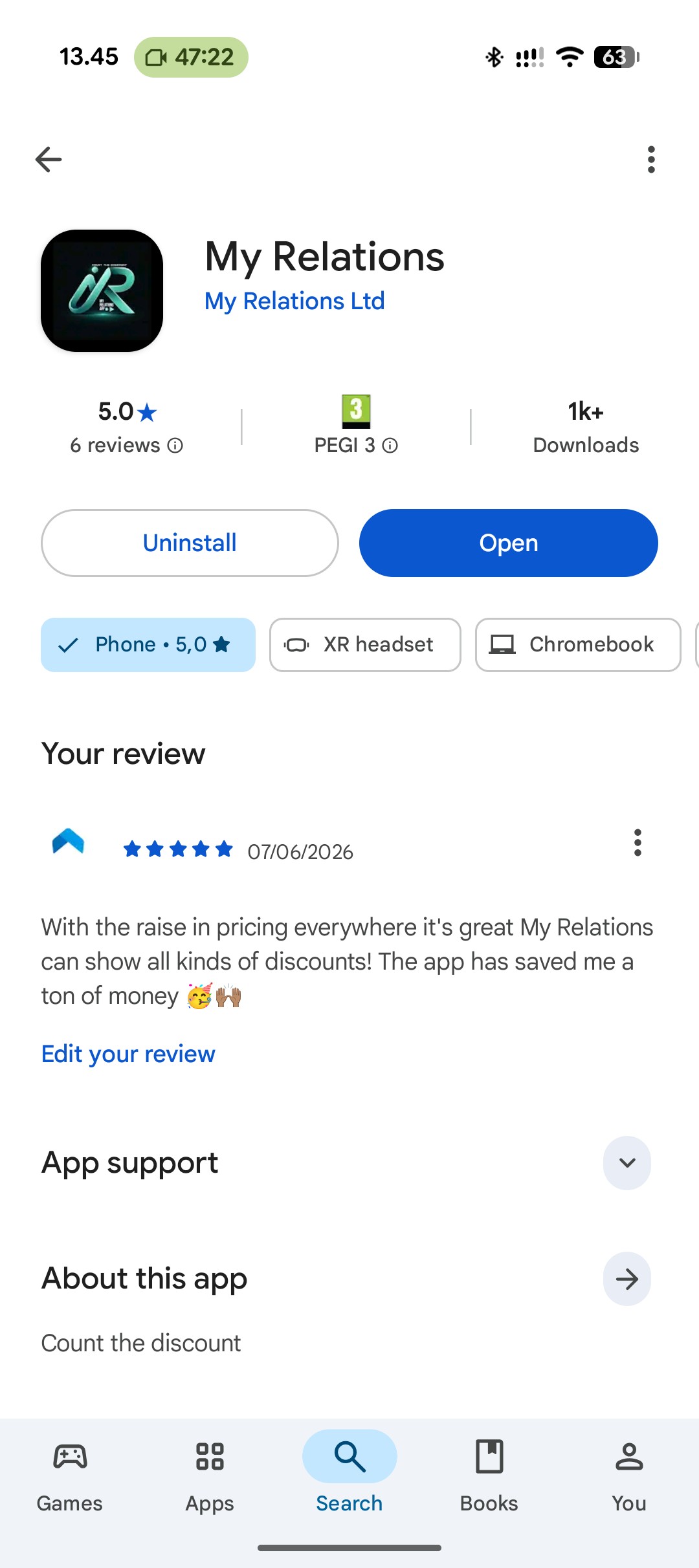
Get My Relations from Google Play and open it.
Quick steps — here's exactly what to tap to start saving at local businesses near you.
Get My Relations from Google Play and open it.
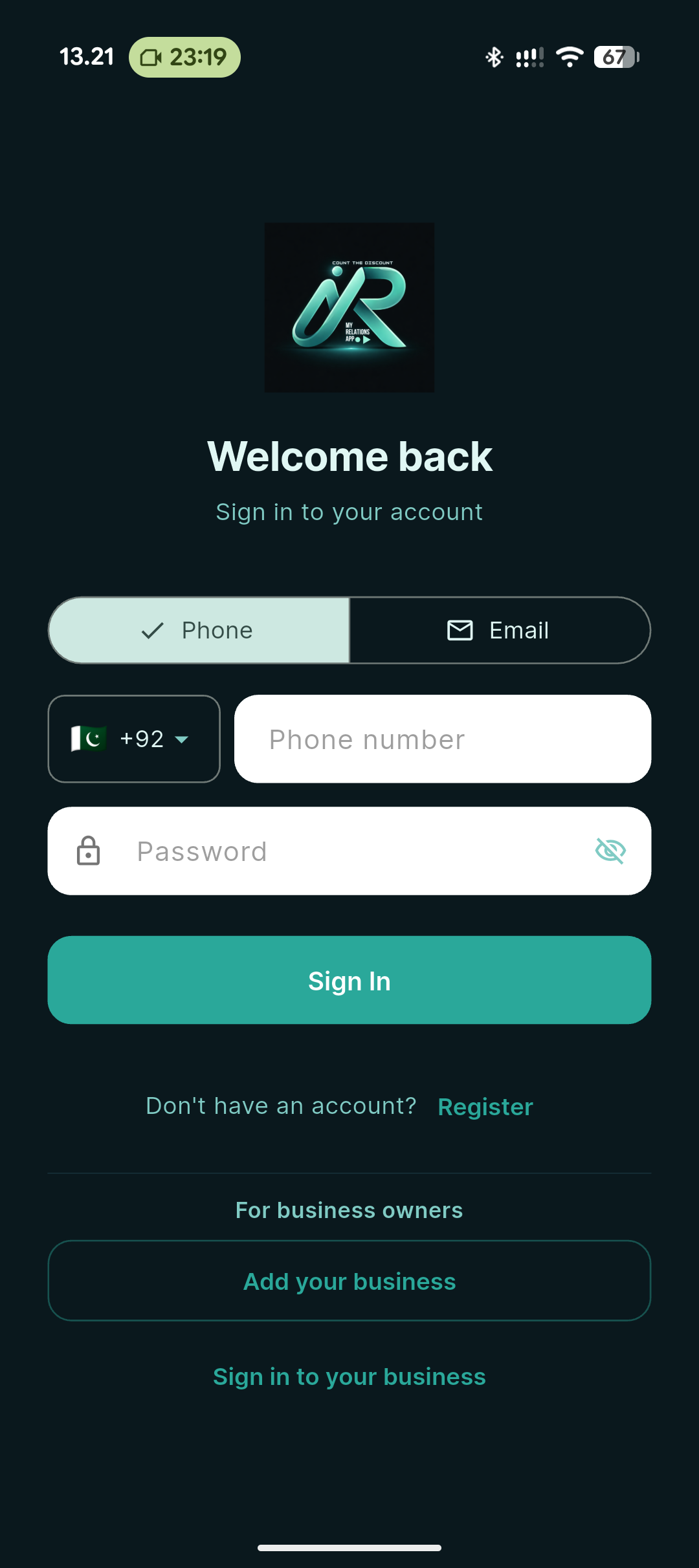
Click on the button "Add our business" to get started.
If you already have an account, sign in. Otherwise, click on "List your business" to start offering discounts.
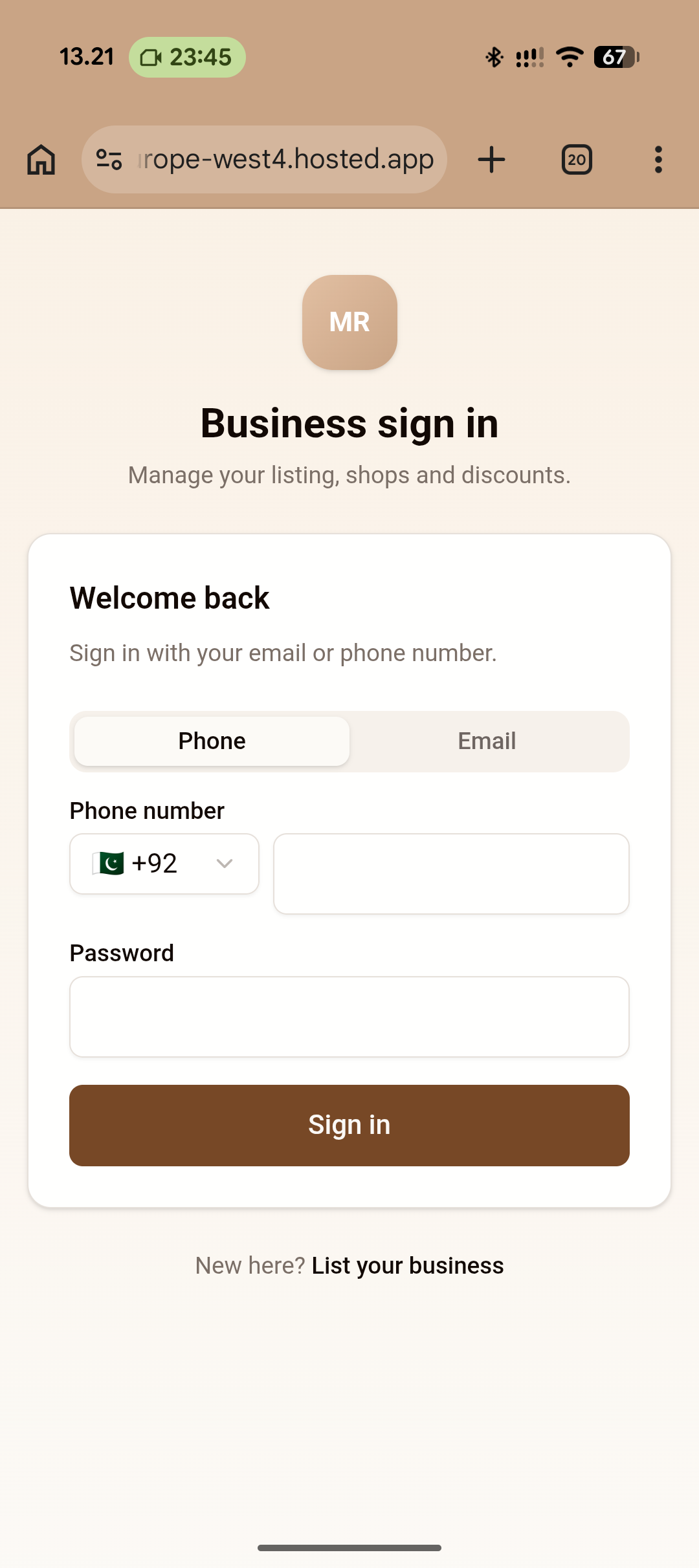
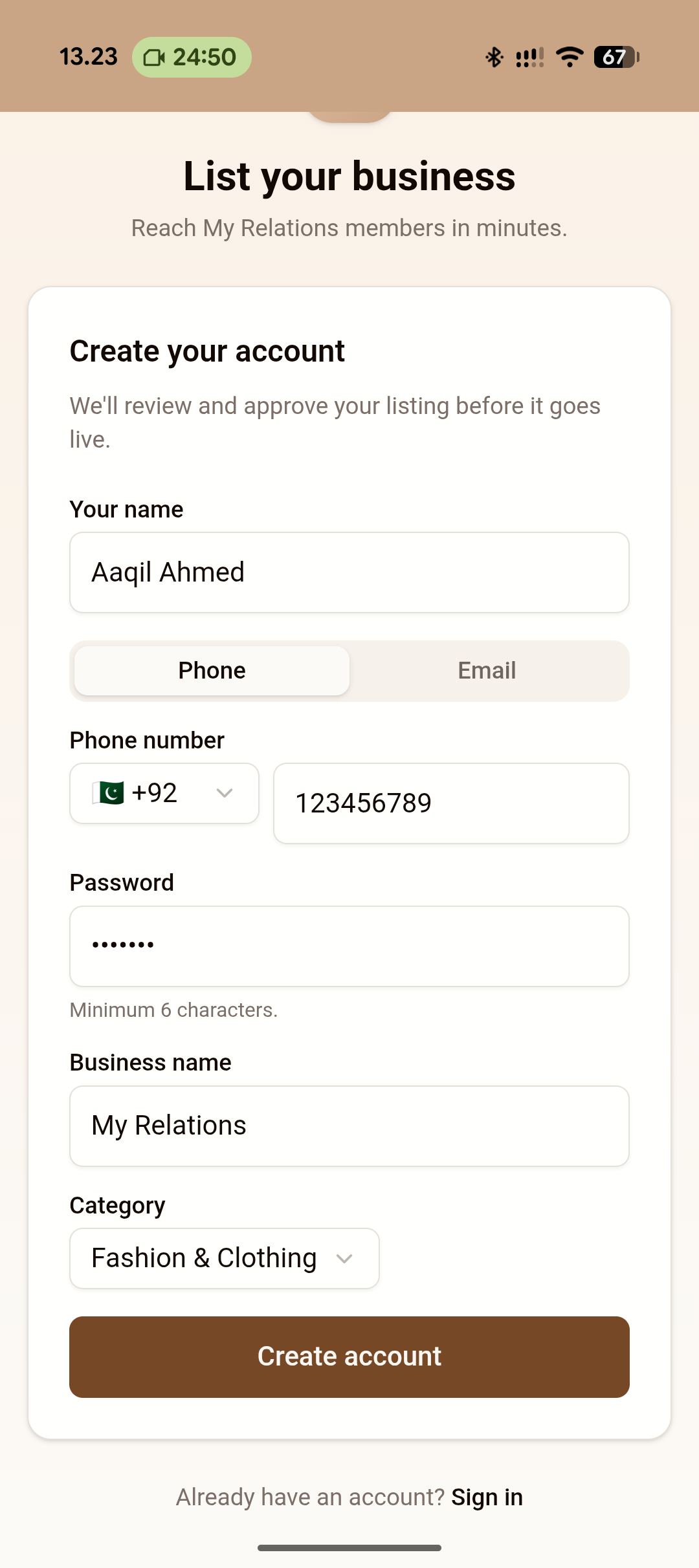
Fill out the form with your business details to get started. Choose to sign in with your Email or Phone number
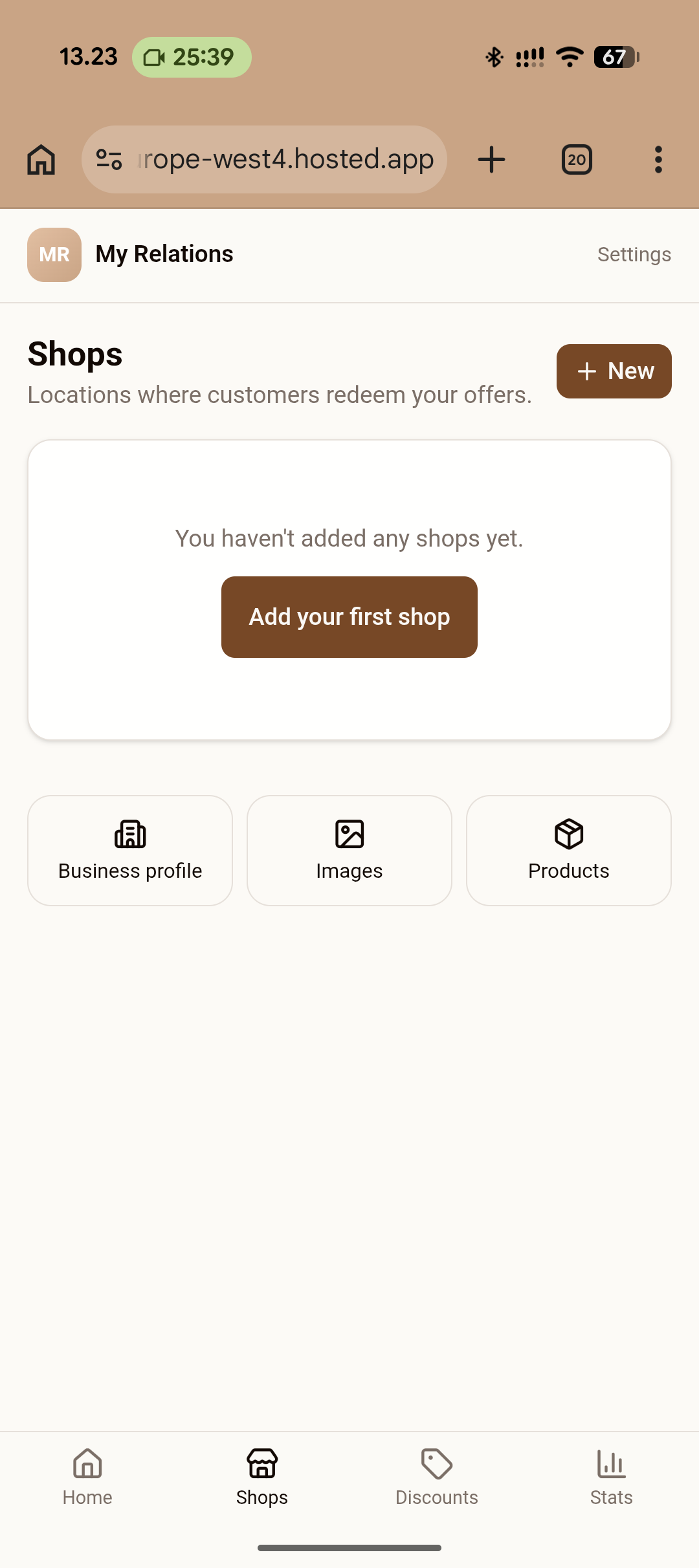
On bottom left, click on "Shops". Then click on "New" or "Add your first shop"
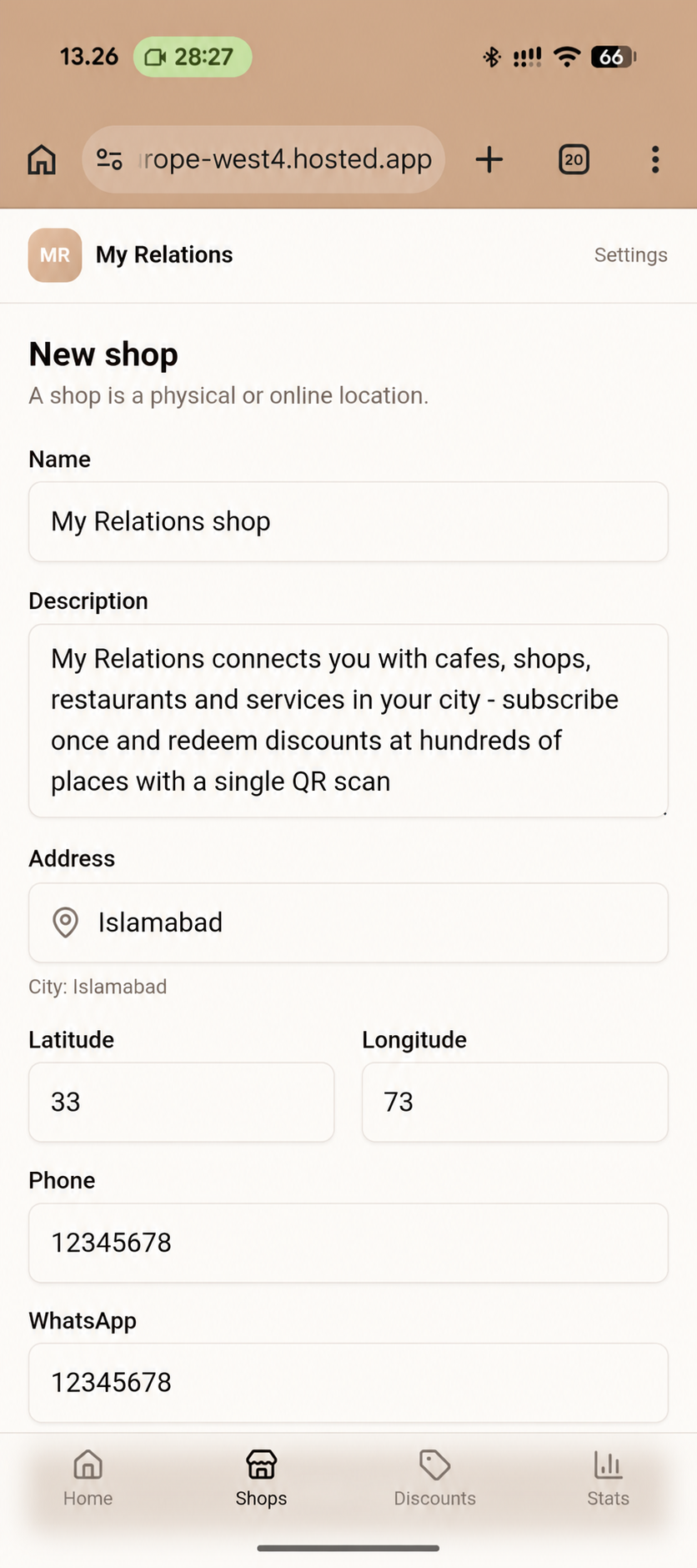
Fill out the form, and enter the correct address of your shop. If your shop is not available on Google Maps, then fill out the coordinates.
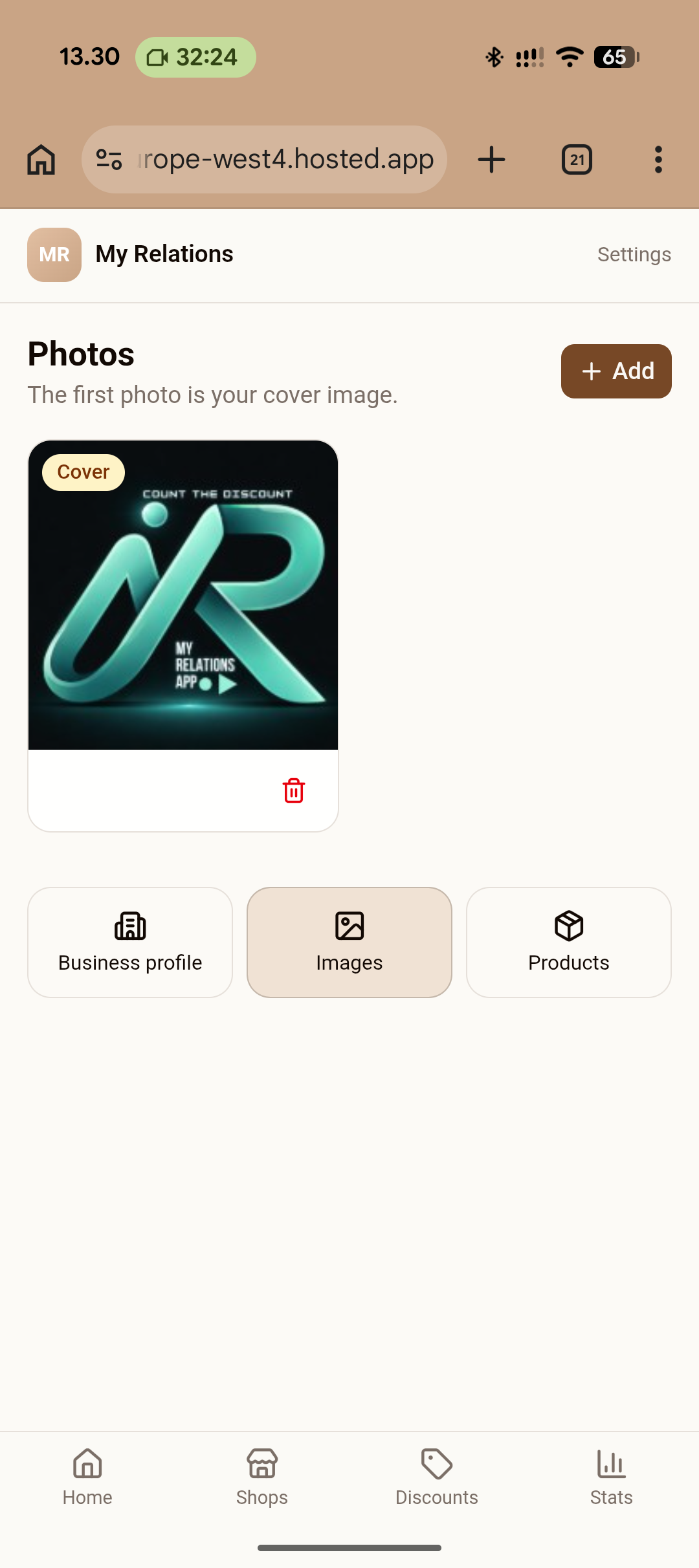
Go to "Images" and select your logo or picture of your shop.
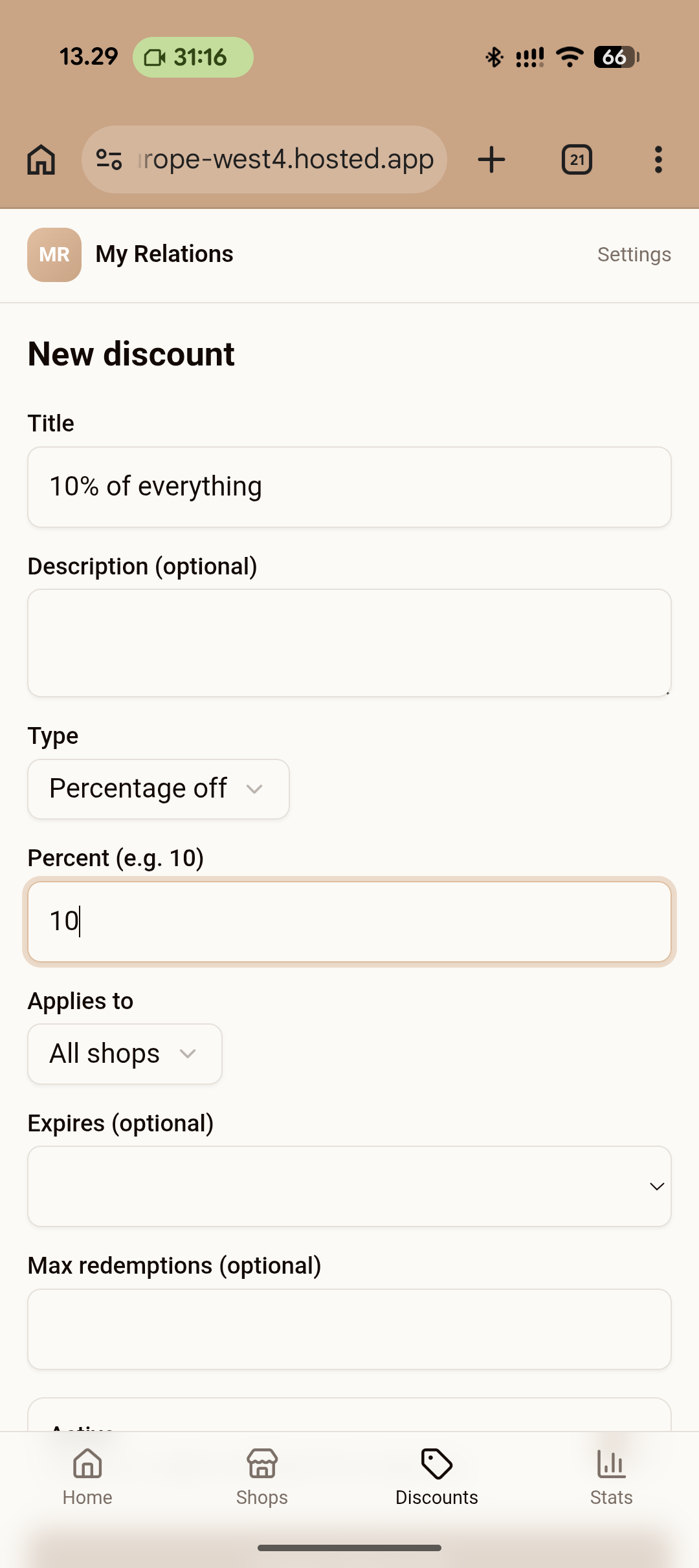
Go to "Discounts" and add your available offers.
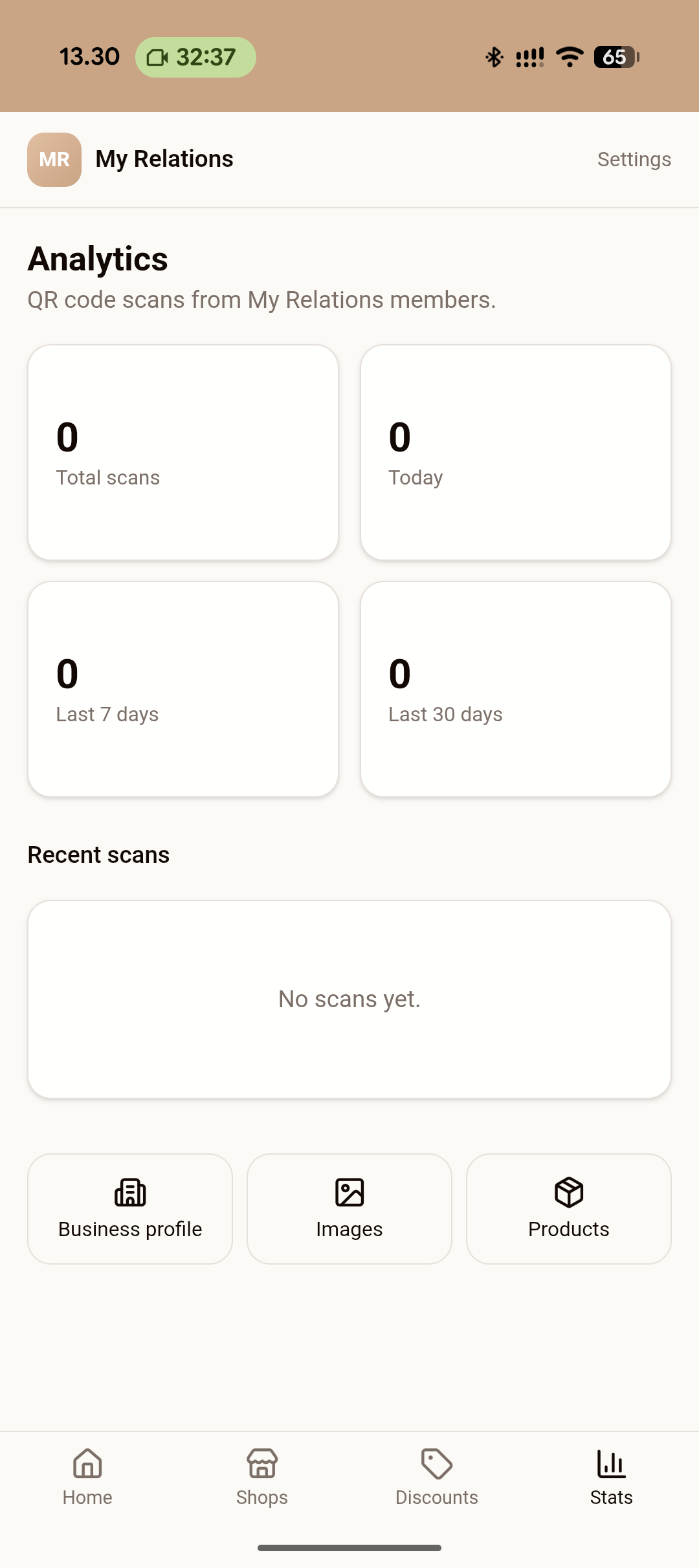
Go to "Stats" to view the performance of your shop and the number of scans.